
Product guide
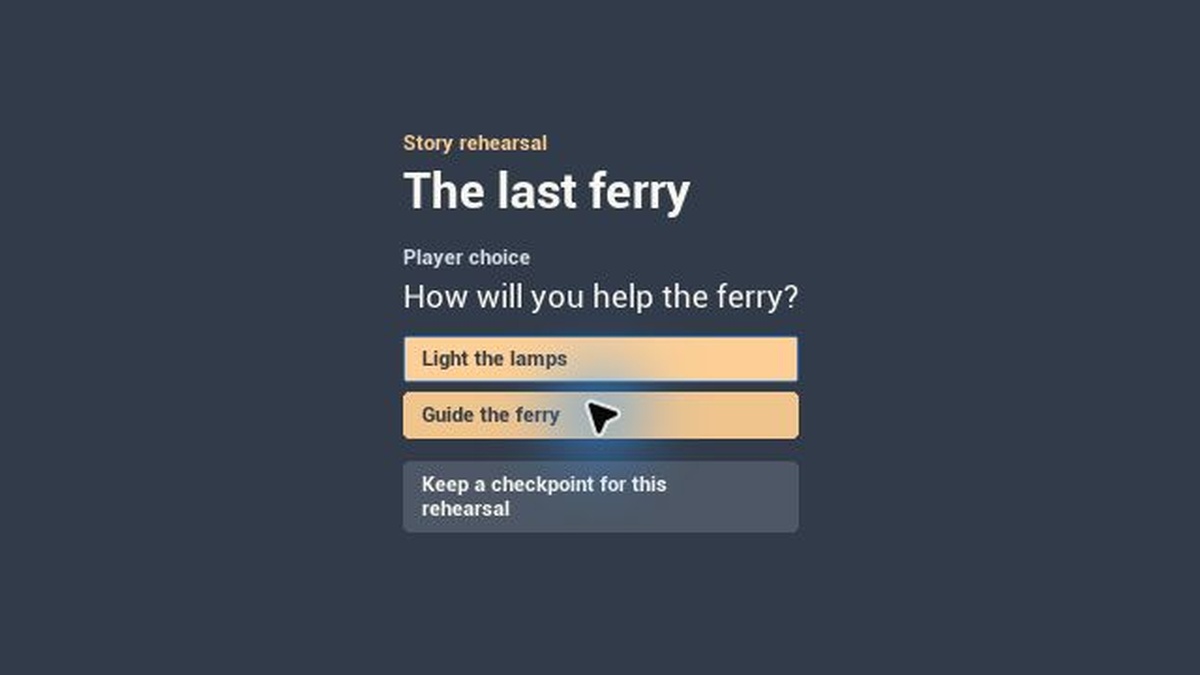
Use QuestFlow when a writer needs to author a branch, a designer needs to play both routes, and a programmer needs stable identifiers for gameplay and saves. QuestFlow runs inside Unreal Engine. The included story, The last ferry, lets the player light two harbour lamps or guide the ferry directly.
Play the included story
- Enable QuestFlow Narrative Studio in Edit → Plugins and restart Unreal Editor if prompted. For a source distribution, place the plugin folder containing
QuestFlowStudio.uplugininside your C++ project'sPluginsfolder, then build its Development Editor target with the UE 5.8 Windows C++ toolchain. - Turn on Show Plugin Content in the Content Browser settings. In the QuestFlow plugin's Examples folder, open L_HarbourWatch.
- Select one player and Play Standalone as the play net mode, then press Play. Continue past the harbour keeper's opening line. Keep a rehearsal checkpoint at the fork, choose Light the lamps, and record two objective events to see the ending. Return to the checkpoint and try Guide the ferry.
- End play. Open NS_HarbourWatch to see where the routes separate and meet again. The checkpoint lasts for that play session. The sample does not write to a player's disk slot.
Author your own story
Create a QuestFlow Story in the Content Browser. Its starting graph already contains a conversation, a decision, an objective and an ending. Select a node to edit its text and options. Drag an output pin to the next node's input. Set start selects the entry node. Validate checks for missing text, unattached outputs, unreachable nodes, duplicate IDs and circular paths. Correct the reported node, validate again and save the asset.
Add a QuestFlow Story Rehearsal actor to a dedicated test level and assign your graph to its Story field to play your changes. Keep one rehearsal actor in that level. It supplies a standalone preview interface. Your production game can present the same story through its own UI.
For a spreadsheet-led team, use Import / export → Create Data Table. Each named row represents a node. One row marks the start. Continuations, failure paths and keyed choices refer to row names. Use Apply Data Table to bring edits back into the story. Validate your edited table before replacing a published story. An invalid import reports the problem and retains the existing graph. During Play in Editor, the graph's live inspector can follow an active player component for that graph.
Connect a game
Add a Quest Flow Narrative Player Component to the actor that owns the story. Call Start Narrative on the authority with your graph. Read Get Active Node and Get Playback to display the current content. Listen for On Narrative Changed to refresh the interface when state changes.
To show the included gameplay HUD, use Create Widget with the QuestFlow Quest Tracker class and your local player controller. Call Bind Quest Tracker with that player's narrative component, then Add to Player Screen. The tracker shows the current story, objective counts and ending. You can pass your Unreal String Table when binding. If the local player changes characters, bind the new character's component. Bind an empty component to clear the tracker.
| When the player acts | Call on the authority |
|---|---|
| Continues a spoken line | Advance Dialogue with the displayed node ID |
| Selects an option | Select Choice with the node and choice IDs |
| Completes an objective action | Apply Objective Progress with the node ID, objective ID and positive event count |
| Triggers an authored failure condition | Fail Objective with the active node ID. Connect the failure route when authoring that objective. |
Use Parallel Objectives when events can arrive in any order. Give each requirement a stable ID and target. Read each one with Get Condition Progress. The successful route opens after all targets are met. To issue a gameplay reward, set Reward ID on the objective and bind the server's On Reward Earned event. Your game decides what the reward does. If it writes to a separate inventory or service, persist the supplied playthrough ID and reward ID together to prevent a repeated grant. Restoring a checkpoint does not grant the reward again.
Check the returned success flag and error text. Passing the displayed node ID prevents a delayed click from acting on the next node. For multiplayer, use a replicated owning actor. Its relevancy determines which clients see the story state. Route each player's input through your game's normal server-side checks. The rehearsal actor is for standalone play.
Preserve an existing player's progress
Call Create Snapshot on the authority and write its result with Unreal's Save Game to Slot. Your game chooses the player, slot name and storage policy. After Load Game from Slot, cast the result to Quest Flow Narrative Save Game and call Restore Narrative. Check that it succeeded before replacing an older slot.
Text edits can keep their original node and choice IDs. When publishing a structural revision, increment the graph's Definition Version. Create a Data Asset of class Quest Flow Save Migration. Choose the destination graph, pin its version and add a source-version mapping for each older revision you support. Keep surviving IDs unchanged. Fill in replacements for nodes or choices that have moved to new IDs. A choice replacement uses its original node and choice IDs.
Call Restore Migrated Narrative with the player's existing save. QuestFlow checks that the mapped choice history can reach the saved objective and that the original progress still fits. A failed restore leaves the source save and running state available for recovery. After success, call Create Snapshot again and persist the new version using your normal save policy.
Keep reward IDs and the IDs of saved parallel conditions stable across a migration. The current playthrough cannot rewind to a snapshot that would remove an already earned reward. Use a fresh playthrough to rehearse a different reward history.
Review changes and translate dialogue
Export JSON writes the graph IDs, entry point, branch targets, source text, objective counts and layout. Nodes have stable ordering, so moving an asset or reordering its stored node array does not introduce unrelated changes into a code review. Option order stays in the writer's chosen display order. The JSON supports review and external tools. Author changes in the native graph.
Export string table writes an Unreal String Table CSV. Import it into a String Table asset, then use Get Localized Title, Get Localized Node Text and Get Localized Choice Label with that table. Your project handles translated cultures through Unreal's localisation tools. Missing entries fall back to the authored line. Assigning the table to the example actor's String Table field lets you rehearse the same lookup.
Choose Printable narrative review to share a local HTML handout with someone who does not run Unreal. Open it in a browser and follow a choice link to its destination. Use the browser's Print command to create a paper copy or PDF.
Compatibility, privacy and support
The plugin targets Windows 64-bit and Unreal Engine 5.8. The editable examples live in the plugin's Content/Examples directory. Exported files go to the location you select. QuestFlow includes no hosted account, analytics or separate service. The game controls normal Unreal replication and save storage.
For a linear objective checklist, follow the companion Harbour Beacon quick start. For help, include your Unreal version, the action you took and any validation message. Contact Howth Technology Factory
Play The Harbour Beacon
Open QuestFlow Studio Content → Examples → DA_HarbourBeacon in the Unreal Content Browser. Enable Show Plugin Content in the browser settings if the plugin folder is hidden. This quest asks the player to recover two lenses and light a beacon.
- In an Actor or Player Controller Blueprint, use Construct Object from Class with Quest Flow Session. Store its return value in a variable on the owning object.
- Call Start Quest with DA_HarbourBeacon. Check the returned success flag. On a failure, display Out Error. Use Get Active Objective to read the current description and target and Get Active Progress for the current count.
- On each collected lens, call Apply Progress with objective ID
CollectLensesand amount1. The second lens opensLightBeacon. PassLightBeaconand1when the player lights it. Is Complete now returns true.
Save halfway through
After the first lens, call Create Save and pass the returned object to Unreal's Save Game to Slot using a slot and user index chosen by your game. Check that the write succeeded. To resume, load the same slot with Load Game from Slot, cast the result to Quest Flow Save Game, construct a session and call Restore Quest with the definition and loaded save. The next objective is still CollectLenses, at one of two.
For a new quest, create a Data Asset of class Quest Flow Definition. Give the quest and each objective permanent IDs, a player-facing description and a positive target count. Keep the IDs when polishing the text. Increment Definition Version when changing the sequence, IDs or counts. This version accepts matching save and definition versions. If a restore fails, report the returned error and preserve the player's slot.