Check OBS before logging the session
Run Preflight checks the OBS connection and whether it reports recording or streaming. A failed check blocks the session record from starting, so a connection problem is visible before you continue.
Production Operations Suite · Stream Deck plugin for Windows
Developed and in Review
Follow a production checklist, record when important moments happen, and note problems and how you fixed them. Twelve Stream Deck buttons keep these details together while you record or stream in OBS. Export a session report so your editor or next operator can see what happened and what needs attention.
Submitted to Elgato Marketplace on 13 November 2026. Awaiting review. Launch price: €17.64 EUR one time. Purchase is not yet available.
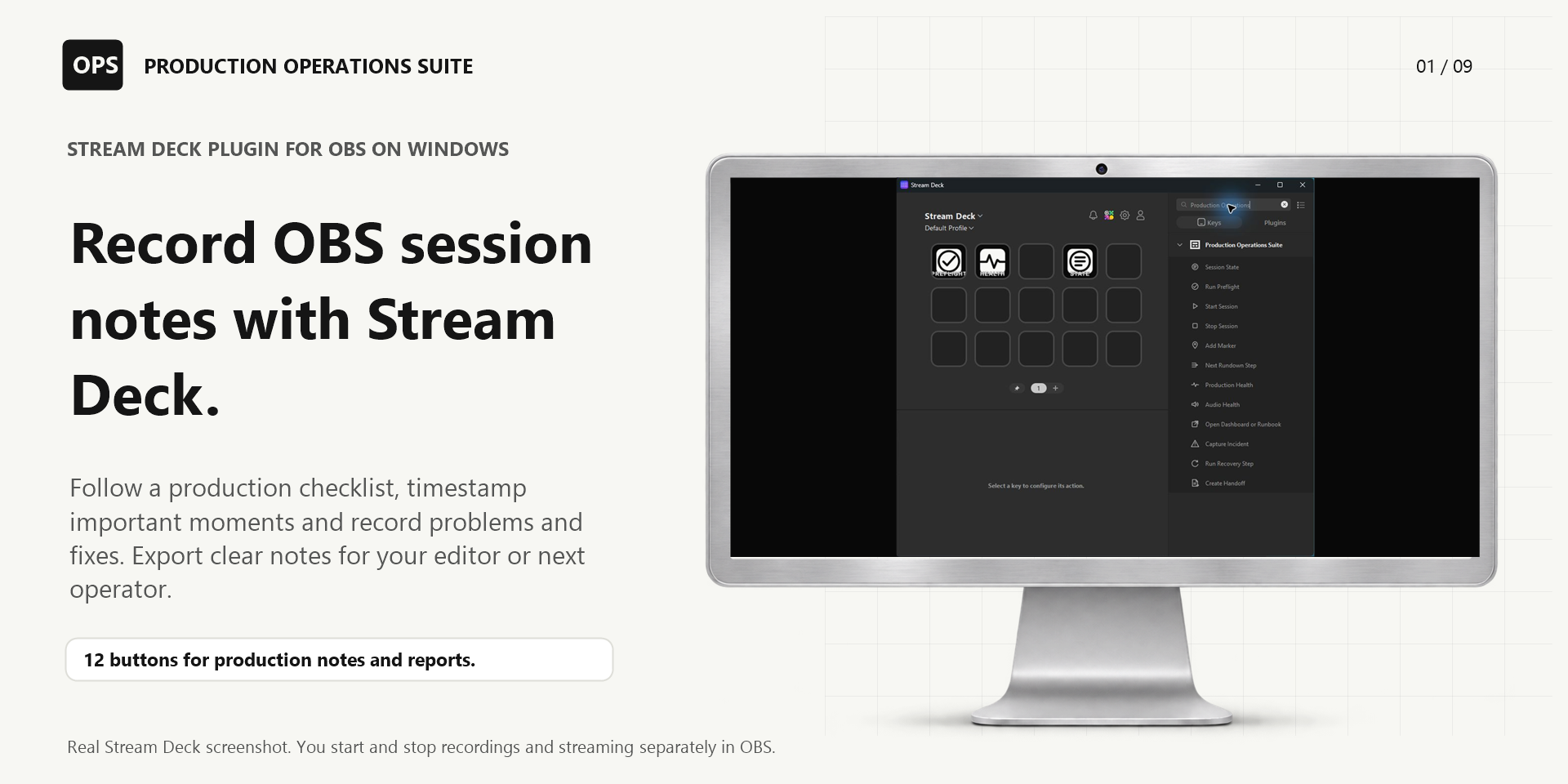
Your editor needs to know which moments matter. The next operator needs to know what went wrong and how you fixed it. Keep those notes with the production checklist, then share a report instead of asking someone to piece together separate messages or rely on your memory.
Run Preflight checks the OBS connection and whether it reports recording or streaming. A failed check blocks the session record from starting, so a connection problem is visible before you continue.
Advance your checklist and add notes with timestamps as important moments happen. Record a problem and the steps you took to resolve it, so the person reading the report has the context.
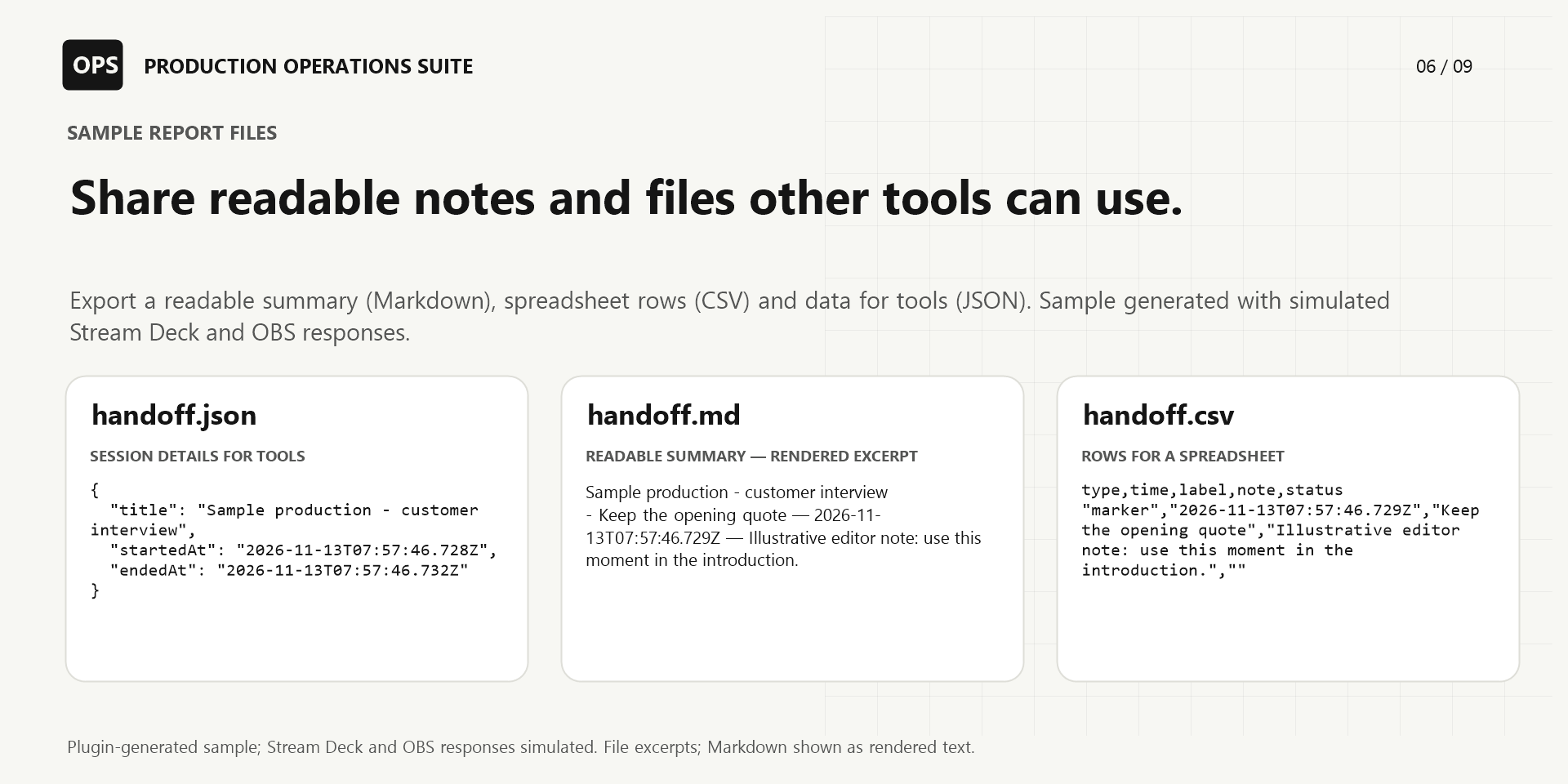
Use the readable Markdown report for people, CSV event rows for a spreadsheet, or JSON for a technical workflow. Keep the exported files with the rest of the production.
In Stream Deck settings, name the session, enter a production checklist (called a rundown in the plugin) and set the notes attached to your buttons. Start and stop recording separately in OBS.
Configure the OBS connection, session title and production steps. Run Preflight, review its result and check the microphone signal and recording destination yourself.
Start the session record. Move through the checklist, timestamp important moments and log problems. After resolving a problem yourself, record what you did and confirm it.
Press Stop Session twice within five seconds to complete the record. Save the report files before starting a new session, ready for your editor or next operator.
Recording stays under your control. Start Session and Stop Session manage the production record. They do not start or stop OBS recording or streaming. Audio Health reads mute and volume settings; it does not listen for sound or certify that audio is present.
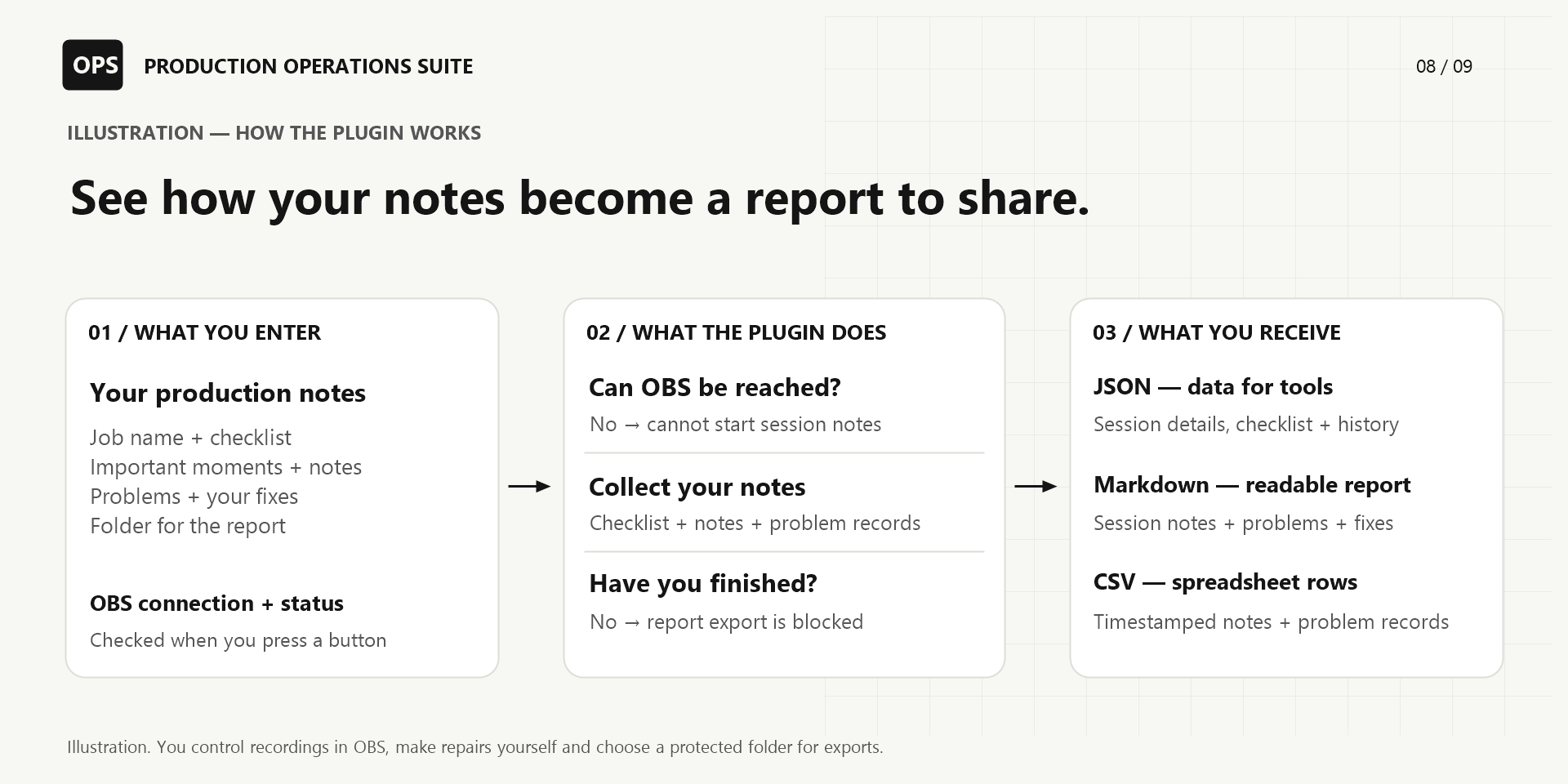
The gallery explains the actions, local data boundary and output formats. Diagrams describe the implemented workflow; they are not fabricated application screens.
Compatibility, setup, data and what is included.
It provides twelve Stream Deck actions to check local OBS when pressed, follow a production checklist, keep dated notes and record problems with their resolutions. Create Handoff exports a session report for the next operator or editor as JSON, Markdown and CSV files.
It is for Windows-based OBS operators, stream producers and small production teams that want a repeatable operating workflow on Stream Deck.
No. Release 0.1 accepts only localhost OBS WebSocket addresses on the same computer and reads OBS status; Start/Stop do not control OBS outputs.
No. They start and complete the local production record. Operate recording and streaming separately in OBS.
Select Run Preflight in Stream Deck. Set the session title and enter one rundown step per line; the rundown is your production checklist. Save it, then advance the steps as you work. Blank fields use a default title and four default steps; custom rundowns support 1–50 steps.
It verifies the configured local OBS connection and obtains OBS version, recording status and streaming status. It does not inspect microphone signal, disk space or recording destination capacity; those remain operator checks.
No. There is no Howth Technology Factory account, backend, analytics or telemetry in the release candidate.
Stream Deck 7.1 or later.
Release 0.1 supports Windows 10 or later. macOS is not claimed in this release.
Use an OBS Studio version with OBS WebSocket v5 available and enabled.
Select Run Preflight, Production Health or Audio Health and enter it in that action's local property inspector. Settings are configured separately for each action.
No. It remains in Stream Deck settings and the plugin excludes it from logs.
The next health or preflight check reports unavailable. These checks run when pressed, so a previously displayed title is not continuous monitoring.
No. It reports the configured OBS input's mute and volume settings; it deliberately does not claim live signal detection.
Stop Session requires a second press within five seconds. A single press expires without completing the local record. OBS recording and streaming are unaffected.
Add Marker records the date and time, a configured label and an optional note in the session record. It does not insert a marker into a video file or calculate a position within footage. Set the label and note before pressing the key; update them before subsequent presses when the details change.
The configured summary and note are recorded with a timestamp, and the local session enters a recovery-required state. Address the issue yourself, then enter and save a recovery result before pressing Run Recovery Step. The action records your confirmation and returns a started session to running, or a prepared session to ready. It does not repair equipment or control OBS.
It writes three files to a new local folder after completion: JSON with session data, markers, incidents, rundown status and audit events; Markdown with a readable session/marker/incident summary; and CSV with timestamped marker and incident rows. The formats contain different views of the session, not identical copies of every field.
Release 0.1 retains one active session record. Export a completed session before running preflight to prepare the next; preparing it replaces the previous active record.
Choose an existing folder on a local Windows drive using an absolute path. UNC shares and device paths are refused. Exports are not encrypted by the plugin and inherit the destination folder's Windows permissions; choose the folder and sharing permissions appropriately. Wait for REPORT / SAVED before using the three files.
The plugin reports BACKUP / INVALID and refuses to treat the record as valid. If you decide to discard that unreadable session, Run Preflight provides an explicit RESET SESSION confirmation. This starts fresh and cannot recover the discarded data. Previously exported handoffs are separate files.
No. Incomplete sessions are refused.
No. It does not upload recordings or handoff bundles.
Yes. Configure an explicit URL on Open Dashboard or Runbook.
No. It supports the operating workflow but does not replace a tested production recovery plan.
Use the support contact shown in the marketplace listing and include the Stream Deck version, Windows version, OBS version and the action that failed. Never send your OBS password.
The package, product description and nine-image gallery have been submitted to Elgato Marketplace. The submission is verified as Pending review for version 0.1; marketplace approval remains pending.
Last updated 13 November 2026. Submitted for review; not yet available for purchase. The product will be published after marketplace approval.
Email apifymcpfactory@gmail.com with the product name and a description using sample data. Do not send passwords, tokens or private production notes.
Made by Howth Technology Factory. An independent product; no affiliation with or endorsement by Elgato or OBS Project is implied.