FlowDock Studio · Warehouse Scene Kit

Create warehouse visuals without modelling every part.

Start with an assembled Blender warehouse scene. Rearrange 215 named mesh parts to illustrate receiving, storage, picking, packing and dispatch.

Developed and in Review

Submitted to Superhive on 17 November 2026. Marketplace approval is pending; this edition is not available to purchase yet. Its requested publication date is 2 December 2026, subject to approval.

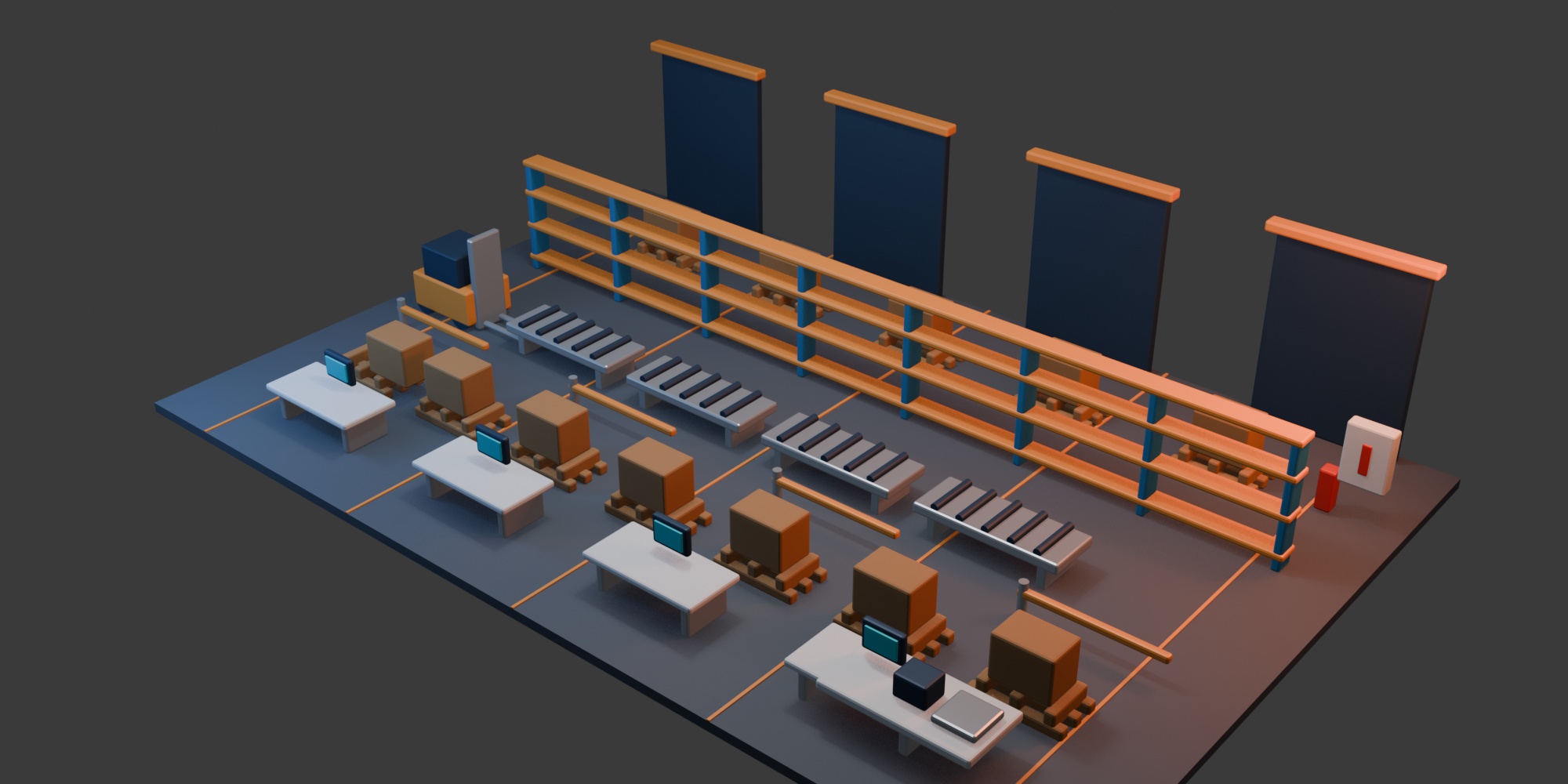
Genuine render of the submitted FlowDock warehouse scene with racks, pallets, supported conveyors and packing stations
Genuine render from the submitted Superhive edition. This is a 3D scene kit, not an application interface.
Submitted price
US$9.99 one-time
Included formats
Blender, FBX, GLB, OBJ with MTL and USD
Verified native compatibility
Blender 5.3.0 · Windows · Eevee

Build warehouse scenes without modelling every rack, pallet and workstation from scratch. FlowDock Studio is a modular 3D warehouse environment kit for visualization artists, training-content teams and environment builders.

Start with the complete scene, then move, duplicate or hide its named parts to create your own layout. The kit contains 215 named mesh parts, including repeated components used to build larger pieces of equipment. It is a working scene to adapt, rather than a collection of unrelated props.

Show the whole warehouse operation

Build your visual story around four connected areas: inbound receiving, storage and racking, picking and packing, and outbound dispatch. Use the full layout for an overview, or frame one area to explain a particular stage.

Racks, pallets, cartons, dock doors, conveyors, workstations, safety barriers, packing equipment and a generic forklift give you the objects needed to make those scenes understandable. Coordinated dark blue, silver, cyan and orange materials keep the equipment visually consistent.

Edit the source or use an interchange format

You receive the editable Blender scene, plus FBX, GLB, OBJ with MTL, and USD (.usdc) exports. Use the native scene for layout and material changes, or choose a format supported by your destination application. Imported materials and appearance may need adjustment in other applications.

The download also includes a named asset catalogue, buyer README, validation notes and five reference renders. The written setup and use guide is available directly on this product page, so you can see the workflow before buying.

From scene kit to your warehouse visual

Use these six steps to turn the supplied scene into your own warehouse visual.

1. Extract and open

Extract the download and open the supplied scene.

2. Choose an area

Start with receiving, storage, picking, packing or dispatch.

3. Select related parts

Use the named catalogue. Equipment can contain several mesh parts; select the whole group you need.

4. Make your changes

Move or duplicate parts and edit materials using the application's normal tools.

5. Inspect and save a copy

Check the arrangement and revise anything that looks wrong. Keep the original as your starting point.

6. Create your visual

Render your scene, or use a supplied export in a compatible importer. Imported materials may need adjustment.

What helps you build the scene

  • An assembled layout: begin with a warehouse scene rather than an empty file.
  • Named mesh parts: adapt racks, pallets, cartons and workstations to your visual story.
  • Editable source and export files: choose the file your application supports.
  • Reference views and a buyer guide: understand the supplied scene before changing it.

Know what you are buying

This is a 3D visualization kit. It is not warehouse management software or an engineering simulation. It does not calculate throughput, structural capacity, vehicle safety, fire compliance or warehouse certification. Equipment is generic and unbranded. No automated logistics, rigged vehicle or animated conveyor workflow is included.

Creation process: Created under the owner’s creative direction, using AI-assisted scripting and asset generation.

Compatibility: Blender 5.3.0 on Windows, using Eevee. Other Blender versions, operating systems and render engines are not covered by this release's compatibility claim.

Licence: Superhive's Standard Royalty Free licence. For product help, message HTC through Superhive or email support@howthtechnologyfactory.pro with your application version and the file you are using.

Read the installation and use guide

Start with an editable warehouse scene

FlowDock Studio is a 3D scene and mesh kit. You can use the supplied layout as your starting point or rearrange its named parts for your own visualization. It is not an add-on: you do not install or activate it through Blender's extensions settings.

Your workflow: Open the scene → Choose an area → Select its parts → Edit the layout → Check and revise → Render your view.

You make each decision and perform each step in your application. This sequence describes the manual workflow; it is not an automated FlowDock command.

1. Download and extract

  1. Download the product ZIP from your Superhive purchase.
  2. Extract the complete archive into a folder you can find again. Do not work directly inside the compressed ZIP.
  3. Keep the folder structure intact. In particular, keep the OBJ, MTL and supplied texture resources together.
  4. Keep an unchanged copy of the download. Save your own scene edits under a different filename.

2. Open the Blender scene

  1. Use Blender 5.3.0 on Windows with Eevee, the configuration supported by this release. Other versions, operating systems and render engines are not covered by this compatibility claim.
  2. In Blender, choose File > Open and select FlowDock-Studio.blend in the extracted product folder.
  3. Use File > Save As to make a working copy before changing the layout or materials.
  4. Inspect the scene in the viewport. Use the Outliner to find named objects, and refer to docs/asset-catalog.json for the supplied mesh-part names.

The kit contains 215 named mesh parts, including repeated components of larger equipment. A complete rack, pallet or workstation may be made from several objects.

3. Make a first useful view

  1. Choose what you need to explain: receiving, storage and racking, picking and packing, or dispatch.
  2. Start with the supplied scene and inspect the relevant area. The reference-renders folder provides five examples of the scene's appearance.
  3. For a render of the scene's active camera, use Render > Render Image. Save the result from the render window when you are happy with it.
  4. To tell a different story, reposition your camera and render again. The reference PNG files are examples, not a selectable camera-preset feature.

Your computer, application version, render settings and changes to the scene affect the result and rendering time. No fixed performance or hardware requirement is claimed.

4. Adapt the layout

  1. Work in your saved copy and select the objects you want to change.
  2. When moving an equipment assembly, select all its related parts. Moving only one rack beam or pallet slat will not move the whole assembly.
  3. Move, rotate, duplicate or hide the selected parts to suit your composition.
  4. Inspect the result from more than one angle for overlaps or missing components, then save your working copy.

The kit provides editable mesh objects. It does not provide automatic warehouse layout generation, snapping tools, simulation or collision validation.

5. Change materials

Select an object and inspect its assigned material in Blender's Material Properties. The supplied materials use a coordinated dark blue, silver, cyan and orange palette. Shared materials can be used by several objects, so a change may affect more than the currently selected part. Save a copy and check the whole scene after making changes.

6. Use another application

Choose a file from exports that your application supports:

  • FlowDock-Studio.fbx — FBX scene export.
  • FlowDock-Studio.glb — binary glTF scene export.
  • FlowDock-Studio.obj — OBJ geometry, with its companion FlowDock-Studio.mtl and supplied resources.
  • FlowDock-Studio.usdc — USD scene export.

Use your application's importer and inspect the resulting objects, materials, scale and orientation. Different importers may interpret the same export differently. Adjust the destination settings as needed; the presence of an export does not certify compatibility with a specific game engine or application. No rigged-vehicle or animated-conveyor workflow is supplied.

Included reference information

  • docs/asset-catalog.json identifies the named mesh parts.
  • docs/README.txt provides a short product overview.
  • docs/VALIDATION.txt records the checks described there. These are scoped checks, not a guarantee for every application or future software version.
  • reference-renders contains five scene images for visual reference.

Troubleshooting

The ZIP will not install as an add-on: extract it and open the .blend scene instead. It is not an extension package.

A material is missing after import: confirm that the complete archive was extracted, retain the companion material and texture files, and check your importer's material options.

Only part of an object moved: undo the move, identify the related named components, and select the whole set before trying again.

The imported scene looks different: check the destination application's material, lighting, scale and orientation settings. Interchange formats do not guarantee identical appearance.

The scene does not open in your Blender version: confirm you are using Blender 5.3.0 on Windows and contact support with the filename and exact error. Older and future releases are not automatically covered.

Scope and safe use

FlowDock Studio is for visualization. It does not calculate throughput, structural capacity, vehicle safety, fire compliance or warehouse certification. Validate real operational and safety decisions separately. Equipment is generic and unbranded; no manufacturer endorsement or certified dimensions are claimed.

Use and sharing are governed by Superhive's Standard Royalty Free licence. Do not assume that purchasing the scene grants permission to redistribute its editable assets.

Creation process: Created under the owner’s creative direction, using AI-assisted scripting and asset generation.

Support

Message HTC through Superhive or email support@howthtechnologyfactory.pro. Include the application and version, filename, steps you tried and any error message. Remove private project or customer details from screenshots before sending them.

Questions before you buy

What is FlowDock Studio?

FlowDock Studio is an editable 3D warehouse scene and modular mesh kit. Use it to create warehouse visualizations, training illustrations, operational stories and environment scenes. It supplies the scene and objects; it does not run warehouse operations.

Who is this kit for?

It is for visualization artists, training-content teams and environment builders who need recognizable warehouse equipment in one coordinated scene. Basic Blender navigation and object editing will help you adapt the layout.

What problem does the kit help me solve?

It gives you a warehouse starting point with matching equipment, so you can focus on your layout, camera views and explanation instead of modelling every rack, pallet and workstation from scratch.

What is included in the download?

Editable Blender source; FBX, GLB, OBJ with MTL and USD (.usdc) exports; a named asset catalogue; a buyer README; validation notes; and five reference renders. The kit contains 215 named mesh parts.

Are these 215 different finished props?

No. The count is 215 named mesh parts, including repeated parts and components of larger objects. Rack posts and beams, pallet pieces and conveyor rollers contribute to that count. It is not a claim of 215 unique equipment designs.

Which warehouse activities can I illustrate?

The scene covers inbound receiving, storage and racking, picking and packing, and outbound dispatch. Show the whole layout or frame one area for a focused explanation. These are visual arrangements, not executable process simulations.

What equipment will I find?

The scene includes racks, pallets, cartons, dock doors, conveyors, workstations, barriers, packing equipment and a generic forklift. The named catalogue helps you identify the component parts.

Can I change the warehouse layout?

Yes. Save a working copy of the Blender scene, then move, duplicate, rotate or hide its mesh objects. Equipment can contain several separate parts, so select all of the relevant parts when moving or duplicating it.

Can I use just one area or a few objects?

Yes. Work from a copy of the scene and keep the parts you need for your composition. Check for related components before removing the rest; the asset count includes parts of larger objects.

Is this a Blender add-on?

No. It is a scene and asset download. Extract the ZIP and open the .blend file; do not install the ZIP as an extension or add-on. No FlowDock add-on activation is needed.

Which Blender version should I use?

This release's supported configuration is Blender 5.3.0 on Windows, using Eevee. Other Blender versions, operating systems and render engines are not covered by this compatibility claim. If you need a different configuration, ask before purchasing.

Can I use the kit outside Blender?

FBX, GLB, OBJ with MTL and USD (.usdc) files are included for applications that support those formats. Import settings, materials, scale and performance vary by application. This listing does not certify a particular game engine or non-Blender application.

Which file should I open first?

For Blender, open FlowDock-Studio.blend after extracting the download. Use an export from the exports folder only when your destination application needs that format. Keep the supplied folder structure intact.

Why are OBJ, MTL and a texture folder supplied together?

OBJ material references can depend on the companion MTL file and supplied texture resources. Keep those files and their relative folders together when importing. Copying only the OBJ can result in missing or different materials.

Will every export look identical in another application?

Not necessarily. Different importers interpret materials, lighting, geometry and units differently. Inspect the imported scene and adjust the destination application's material and display settings as needed. The native Blender scene is the source for layout and material editing.

Can I change the colours?

Yes. The Blender scene includes editable materials. Its coordinated dark blue, silver, cyan and orange palette is a starting point. A shared material change can affect several objects, so save a copy and check the result across the scene.

Are the gallery images photographs?

No. They are renders of the supplied 3D scene. Any explanatory captions are separate from the model. The download also includes five reference renders; those images are references, not five separate warehouse scenes.

Are the reference views selectable camera presets?

The included reference renders are image files. This listing does not promise a five-camera preset system. You can position a camera in the editable scene to create your own views.

Is the forklift rigged, and do the conveyors move automatically?

No rigged-vehicle or animated-conveyor workflow is included. These are static scene objects. Animation, interactive behaviour and simulation would be additional work in your project.

Can I use the kit to explain a process to colleagues or trainees?

Yes, its receiving, storage, picking and dispatch areas provide a visual basis for your own explanations. You supply the process instructions and validate them for your workplace. The kit is not a certified training programme or safety assessment.

Does it calculate warehouse capacity or improve my real layout automatically?

No. It does not calculate throughput, load capacity, travel efficiency, vehicle clearances, fire compliance or warehouse certification. Use qualified tools and professional checks for engineering or operational decisions.

Are these branded equipment models?

No. The equipment is generic and unbranded. The scene is not a claim of approval, specification accuracy or endorsement by an equipment manufacturer.

Does the kit require an online FlowDock service?

The delivered product is a set of local scene, export, documentation and reference-image files. It is not a hosted FlowDock service. Your purchase account and the applications you use have their own requirements and policies.

How was the kit created?

Created under the owner’s creative direction, using AI-assisted scripting and asset generation.

Can I use the files for commercial work or share them with my team?

Superhive's Standard Royalty Free licence allows personal, educational and commercial use. Reselling, redistributing or repackaging the product requires the creator's explicit permission. Using this model product in a logo, watermark or trademark is not permitted. Do not assume unrestricted team sharing of editable files. Full terms: https://superhivemarket.com/page/royalty-free-license

Why might geometry counts differ between file formats?

Interchange formats can process geometry differently. The included validation notes describe the scoped reimport checks for this edition. The 215-part product description is a named mesh-part count, not a promise of identical vertex or polygon counts in every importer.

What should I do if an imported scene is missing materials?

Check that the archive was fully extracted and that companion files remain in their original folders. Confirm that your application supports the selected format and inspect its material-import options. If the problem persists, tell support which file and application version you used.

How do I get help?

Message HTC through Superhive or email support@howthtechnologyfactory.pro. Include your application version, the filename, the steps you tried and any error message. A screenshot can help; remove private project or customer details before sending it.

Support and editions

For product questions, email support@howthtechnologyfactory.pro. The Superhive submission uses its Standard Royalty Free licence.

The separate 205-part CGTrader edition remains available under its own listing and licence. The 215-part package described on this page is the Superhive edition currently in review.