This guide describes the current development build. Final compatibility, demonstration and release checks are still in progress. The previous submission did not pass Shopify’s initial design review. Design revisions and resubmission remain pending; the theme is not approved or available to purchase.
Set up your store
- Add your real products, prices, inventory, product images and collections in Shopify before configuring the theme. Caliper reads those records; it does not create specifications or determine compatibility for you.
- In the theme editor, open Header to select your logo and main menu. Use Shopify's nested menu items for up to three navigation levels. Add customer account navigation only when customer accounts are enabled for your store.
- In Theme settings, choose Typography, Layout and Colors. Pair Background with Foreground, Surface with Surface text, and Accent with Accent text. Keep text readable on every selected background. The Secondary text and input borders setting controls supporting text and form outlines; choose a color that stays clearly visible against both the page and surface backgrounds. Dividers and decorative borders is separate. The default ink, paper and burnt-orange palette is a starting point.
- Use Brand to add a favicon. Use Social media for your actual profile URLs; blank fields produce no icons or dummy links.
- Configure Footer with your own description, footer menu and newsletter preference. Existing Shopify policies appear when their content is populated. Country and language controls appear when more than one is available in your Shopify configuration.
Build the home page
In Editorial showcase, choose a Showcase item and select a Product. Shoppers can open the item directly from the card, which uses its product title, image and catalogue summary when available. Leave Product empty to write your own story and choose its link.
Catalog introduction contains your main heading, introduction and up to six selected collections. It is available once on the home page. The category directory provides direct links to those collections.
Featured catalog shows real product rows from a chosen collection. Leave Collection blank to use the full catalog, and choose two to eight products. Set the heading and optional introduction to explain the range being shown. The product name, price, availability and option count come from Shopify. An empty collection shows a clear empty state; the editor explains how to populate it.
The Custom Liquid section is an insertion point for merchant-supplied Liquid or compatible integrations. Only add code from a source you trust.
Add catalogue specification summaries
Define a single-line product metafield called custom.spec_summary. Enter the facts a buyer needs to choose the item, such as its size, material or pack contents. The catalogue row and the standard product page use this same value. On the product page it appears beneath the title, before the variant choices. An empty field leaves the title on its own.
In Product workspace → Product title, use Show catalogue specification summary to turn it on for an existing layout. You can turn it off if a manual specification row already displays the same facts.
Configure the product workspace
Open a product template and expand Product workspace. Vendor, product title, price, availability/SKU, options, purchase controls, pickup, description and the variant order table are individual blocks. Reorder them for your shop. Add block also offers specification rows, headings, document links, app blocks and Custom Liquid.
For each specification row, enter a factual label such as Material or Dimensions. Connect its value to the appropriate product metafield using Shopify's dynamic source button. Text, numeric, dimension, weight and volume sources can be selected where Shopify considers them compatible. Empty values produce no row.
A fixed text value is shared by every product using that template. Do not enter a product-specific fact as a template-wide constant. Use a separate product template when a product family needs different specification labels. Confirm the preview on more than one product, including one with missing data.
For documents, add Product document, enter a clear label, and choose a link to your own accurate, licensed document. Product-specific links can use a compatible URL metafield source. Caliper does not include product manuals or certificates and does not validate their technical contents. Test the destination before publishing.
Order variants
The ordinary option picker asks Shopify to resolve the selected combination. Price, availability, SKU and supported purchase options update together. Unavailable combinations cannot be added. Final prices and inventory are controlled by Shopify.
The Variant order table lists values of the last option for the earlier options currently selected. For Material and Size, choose Material first, then enter quantities for the required sizes. Your selection lists each chosen variant, its SKU when present and the quantity to add. Total quantity adds the selected variant quantities. Two packs count as two, irrespective of how many pieces each pack contains. Choose Edit to return to that row, or Clear selection to reset the worksheet before adding. If a row says Check quantity, correct its quantity or set it to zero. Add selected items sends the valid nonzero rows to Shopify together. If you change an option after entering quantities, choose Keep my quantities to stay on the current selection, or Clear and change to discard those unsubmitted quantities and switch.
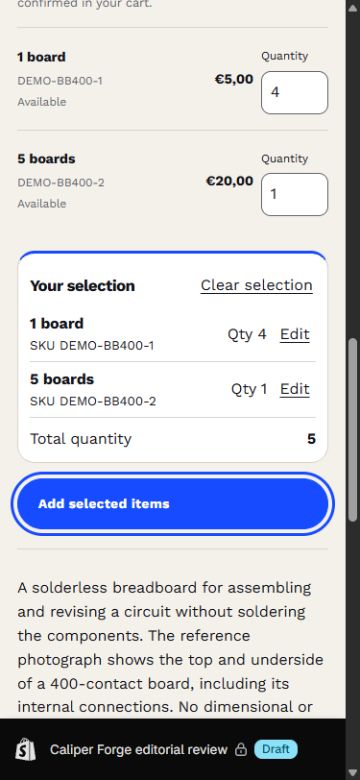
The table supports up to 50 values of the last option. Products with more last-option values or selling plans use the ordinary purchase selector. This limit is distinct from the product’s total variant count. Without JavaScript, the table offers an individual add button per row.
Quantity controls read Shopify’s quantity-rule and cart values. Company-specific quantity rules and volume pricing are not yet verified. Do not rely on this development build for a B2B catalogue. Shopify checks the final request. If stock changes or a request is interrupted, use Review your cart before trying again: an interrupted response can follow a successful add. Caliper does not silently retry an uncertain cart request.
Subscriptions and preorders
Selling plans must be configured in Shopify through a compatible provider. The purchase selector displays the plans that Shopify makes available for the chosen variant. Selecting a plan updates its price and checkout, delivery and remaining-balance amounts from Shopify's allocation data. Selecting a different variant may offer different plans; Caliper explains when the previous purchase option is unavailable. Review the displayed option before adding.
The cart shows the actual selected options, quantities, prices, discounts and selling-plan name. Caliper does not create subscription schedules, collect recurring payments itself or replace the provider's subscription-management interface.
Product media
Upload your licensed images, hosted videos, external videos or 3D models to the Shopify product. Image focal points and responsive variants use Shopify's native image handling. Opening a video or 3D view mounts its interactive player. Closing it, switching media or closing the containing gallery removes that player. External videos include a link to the provider if the embed cannot load.
Device AR depends on Shopify's supported model format and a compatible device/browser. Check the model on your intended devices before showing an AR option to customers. Do not advertise a product model that you have not checked on your supported devices.
Search, filters and recommendations
Predictive search offers matching native results as customers type. The full search and collection pages use the filters configured in Shopify. An empty result offers a clear way to remove filters and continue browsing.
The Product recommendations section can use Related or Complementary recommendations from Shopify. Complementary recommendations require compatible Shopify configuration. Do not assume that every product has recommendations.
Store content and support
Use the Contact form page template for your store's contact page. Blog, article, standard page, search, password and gift-card templates are included. Keep your contact information, policies, delivery information and product claims accurate. A theme cannot supply business policies or legal advice for your store.
Use Shopify’s content editor for ordinary headings, lists, links, quotations, tables and code. Caliper wraps long code lines on narrow screens. Wide tables scroll inside their own area and can be focused and scrolled with the keyboard. Supply a useful table caption and clear row/column headings. Avoid using formatting alone to communicate meaning.
Preview before you publish
Caliper is not available to buy yet. When the theme is released, install it through its official Shopify Theme Store listing. Keep your existing live theme while you configure and preview Caliper in your draft themes. A theme preview is not a published store.
Start with one representative product. Add its options, images, specification values and document links, then configure its product template. Check another product using that same template so a shared label or value does not accidentally describe the wrong item. Review a sold-out option and a product with missing optional information.
On desktop and a phone, follow the journey from a collection or search result to a product and the cart. Check option names, quantities, totals, shipping-policy links and how to recover from an unavailable item. Review your menus, contact page and policies. Preview any app blocks or app embeds with their provider’s instructions before making the theme live.
Change the theme safely
Use the theme editor for normal layout and wording changes. Duplicate your theme before editing its code, keep a note of every custom edit, and work in the duplicate. Caliper does not include a custom-code implementation service.
For a future released Theme Store version, read its release notes and add the available update to your draft themes. Review the updated copy before publishing it. Check any app integrations and custom code separately: Shopify cannot always carry code changes into an updated theme. Keep your previous theme until you have checked the replacement. See Shopify’s update guide.
Common questions
A specification appears on the wrong products. What should I check?
A fixed value in a template is shared by all products assigned to that template. Connect the row to a product metafield for values that differ by product. For different sets of labels, create and assign a separate product template. Check that the metafield definition and source type are compatible with the setting.
Why is a specification or document link missing?
Specification rows need both a label and a value. Product document links need a label and a destination. Empty rows and links are intentionally hidden. Check the current product’s metafield value, then the template’s dynamic-source connection. Verify that the document’s destination is accessible to your customers.
Why is the variant table missing or showing only some options?
The table uses the last option, within the earlier options currently selected. A product with Material and Size lists sizes for the chosen material. Products with selling plans, a single default variant or more than 50 values in the last option use the ordinary purchase controls. Adding this block does not create product variants.
The add request failed. Should I add the items again?
Open Review your cart first. A lost network response does not prove that Shopify rejected the request. Check the existing items and quantities before submitting another add. If Shopify reports insufficient stock, reduce the quantity or choose an available option.
Why are no filters, pickup locations or complementary products shown?
These depend on your Shopify product and store configuration. Filters need configured filter data; pickup needs an eligible location and variant; complementary recommendations need assigned products. Caliper does not invent these records. App or provider features may require separate configuration and eligibility.
Does the theme provide product data or certify compatibility?
No. You supply your catalogue, images, prices, technical facts and documentation. Caliper presents them. It does not verify engineering suitability, legal compliance, stock accuracy or compatibility between products. Demonstration products and media are not included merchandise.
Does Caliper require a subscription or paid app for its specification rows and variant table?
Those features are built into the theme. Your Shopify plan and any separate apps remain your responsibility. Native subscriptions, pickup, checkout services and other provider features depend on their own configuration. There is no claim of compatibility with every app.
Are Shopify B2B and Combined Listings supported?
Company-specific quantity rules, volume pricing and Combined Listings are not currently verified or advertised capabilities of Caliper. A large number of variants on one product is different from a Combined Listing that joins separate products. A high variant count does not establish either of those capabilities.
Theme support
For a theme question, use Caliper’s support form. Include Caliper, its version, your store URL, the affected page, what you expected and the steps that produced the problem. If you share a screenshot, remove customer details and other private information. Never send a password, payment details or customer records.
Theme support covers questions about Caliper’s documented controls and defects in the supplied theme. Custom design or code, catalogue entry, app-provider faults and Shopify payment/account decisions are separate from theme support. Report a suspected theme issue with enough detail to reproduce it. We reply within two business days. Normal support hours are Monday–Friday, 09:00–17:00 Dublin time. Critical theme bugs receive immediate attention.
The support form’s delivery and confirmation checks, and the final illustrated guide, remain release requirements. This development guide is not a release announcement.